
Every WordPress agency has experienced it. A client calls because their site is showing a browser warning, a plugin update has broken something, or the login page is getting hammered with failed login attempts.
Most WordPress security problems are not sophisticated attacks. They are straightforward setup issues that could have been avoided with a consistent process.
The good news is that most of them can be prevented before launch. This is the checklist we would recommend building into any new client website handover.
Why a repeatable process matters
When you are managing multiple client sites, security cannot be something you think about case by case. You need a consistent baseline that every site meets before it goes anywhere near a real audience.
The goal is not enterprise-level security. The goal is to close the obvious gaps that turn into support requests, and to give clients something concrete when they ask what you have done to protect their site.
Here is the baseline we would recommend.
Before launch: the security checklist
1. Enable SSL and force HTTPS sitewide
An SSL certificate is not optional. Without one, every modern browser flags the site as Not Secure, which damages trust before a visitor has even read a word.
Most hosts provide a free Let’s Encrypt certificate. The steps are: activate the certificate in your hosting dashboard, update the WordPress Address and Site Address in Settings > General to use https://, and set up a 301 redirect so all http:// traffic goes to https://.
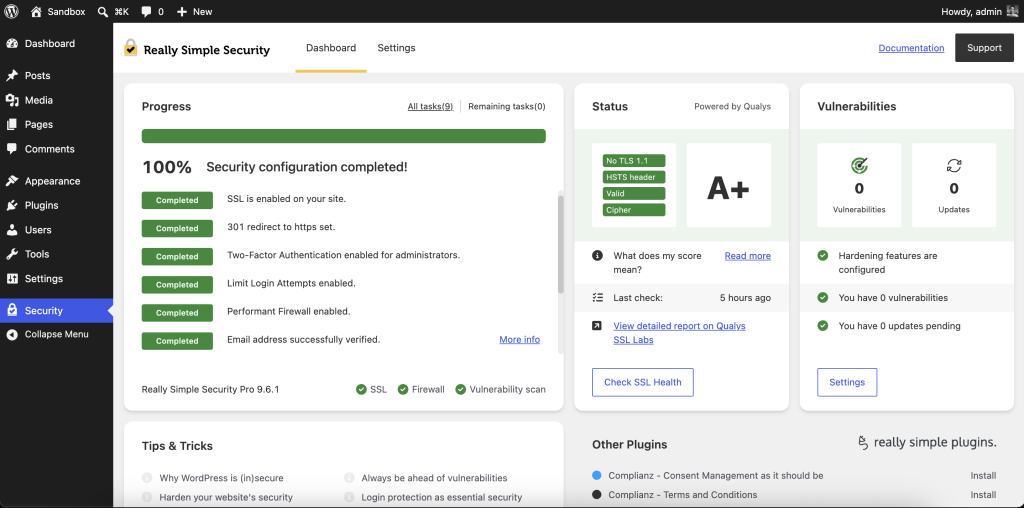
Really Simple Security handles all of this automatically. It detects your certificate, activates HTTPS and fixes most mixed content errors — the lingering HTTP references that still trigger security warnings even after you have switched.
2. Remove unused plugins and themes
Every unused plugin and theme is a potential attack surface. If it is not active and updated, delete it. This includes default themes (Twenty Twenty-One, Twenty Twenty-Two) that came with the installation and will never be used.
3. Configure login protection
The WordPress login page at /wp-admin/ or /wp-login.php is one of the most targeted URLs on the internet. Automated bots run through credential lists against it constantly.
Three things to set up: Limit Login Attempts to lock out accounts after repeated failures, change or hide the login URL so bots cannot easily find it, and consider enabling Two-Factor Authentication for admin accounts. Really Simple Security Pro covers all three, and can also restrict /wp-admin/ access to specific geographic locations, or use the Firewall to block access to the entire site from selected locations.
4. Apply WordPress hardening
Hardening means making small configuration changes that close common attack vectors. The most important ones:
- Prevent code execution in the public uploads folder: This stops a malicious file from being able to run as PHP even if someone manages to get one uploaded there.
- Restrict admin role creation (Pro): Closes a common exploit path where plugin vulnerabilities allow the creation of rogue administrator accounts. These unrecognized administrators are demoted automatically and you receive an email alert.
- Disable XML-RPC if it is not needed: Since it is frequently exploited for brute force attacks, the Pro version also lets you allow only specific XML-RPC calls instead of disabling it entirely.
- Disable the file editor in the WordPress dashboard: So an attacker who gets in cannot easily modify your theme or plugin files.
- Hide the WordPress version number from page source.
- Check file permissions (Pro): Scans critical WordPress files and folders for permissions that are too open, then lets you fix them in one click.
Really Simple Security applies the recommended hardening configuration automatically. You can also do this manually. WordPress.org has a full hardening guide if you want to go through it step by step.
5. Configure backups
Backups are not strictly a security feature but they are essential to security response. If something goes wrong (a hack, a failed update, an accidental deletion), a recent backup is the difference between a 20-minute fix and a client catastrophe.
Use an off-site backup solution. Backups stored only on the same server as the site are not safe enough. UpdraftPlus, BlogVault and ManageWP all offer off-site backup options. Set daily backups minimum for active sites.
6. Set up vulnerability scanning
Outdated plugins and themes are the most common entry point for attackers. The problem is that most site owners do not know a plugin has a vulnerability until they read about it somewhere, by which point their site may already have been targeted.
Really Simple Security scans installed plugins and themes against known vulnerability databases and sends an alert when something needs attention. You can then update or disable the affected item immediately rather than finding out after the fact.
7. Set security headers
Security headers tell browsers how to handle your site: which resources can be loaded, whether the page can be embedded in an iframe, how to handle HTTPS connections. The WordPress Site Health screen will flag missing headers as a warning.
The main ones to set: X-Content-Type-Options, Frame-Ancestors (the Content-Security-Policy directive that supersedes X-Frame-Options), Referrer-Policy, Permissions-Policy and Content-Security-Policy. Really Simple Security applies the recommended set automatically.
8. Enable automatic updates where appropriate
Automatic updates for minor WordPress core releases are generally safe and worth enabling. For plugins and themes, the picture is more nuanced: automatic updates can occasionally break things if not tested. For client sites, a reasonable approach is to enable automatic updates for security-focused plugins (like Really Simple Security) and schedule a weekly check for everything else.
Making this part of your process
The most valuable thing about a checklist like this is that it takes the decision-making out of the equation. You are not asking “did we handle security on this one?” before every launch. You are working through the same list every time.
Really Simple Security was built specifically to make most of this checklist a five-minute job rather than an afternoon of configuration. The free plugin handles SSL, HTTPS, basic hardening, mixed content and vulnerability detection. Pro adds the automated response to those vulnerabilities (force updates and quarantine), two-factor authentication, firewall and advanced hardening.
If you are setting up sites regularly, it is worth the time to establish what your baseline looks like and then build the tooling around it.
For agencies applying this checklist across many client sites, Really Simple Security also exposes WP-CLI commands for its main features, so you can apply the same security baseline through your deployment workflow instead of configuring each site by hand. See Configuring Really Simple Security with WP-CLI for the available commands.